¶ macOS 26 Karing Extended Features Enablement Tutorial
Because Apple has strengthened network security in macOS 26 (Tahoe), Karing requires additional "System Extension" authorization upon first launch to function properly. This tutorial will guide you through the setup process step by step.
⚠️ Scope of Application
- macOS version 26 only
- Only applicable to users who installed Karing via a .dmg file.
👉 If you installed the app through the App Store, the extended features will be enabled automatically without any additional settings.
¶ 1. The prompt when launching Karing for the first time
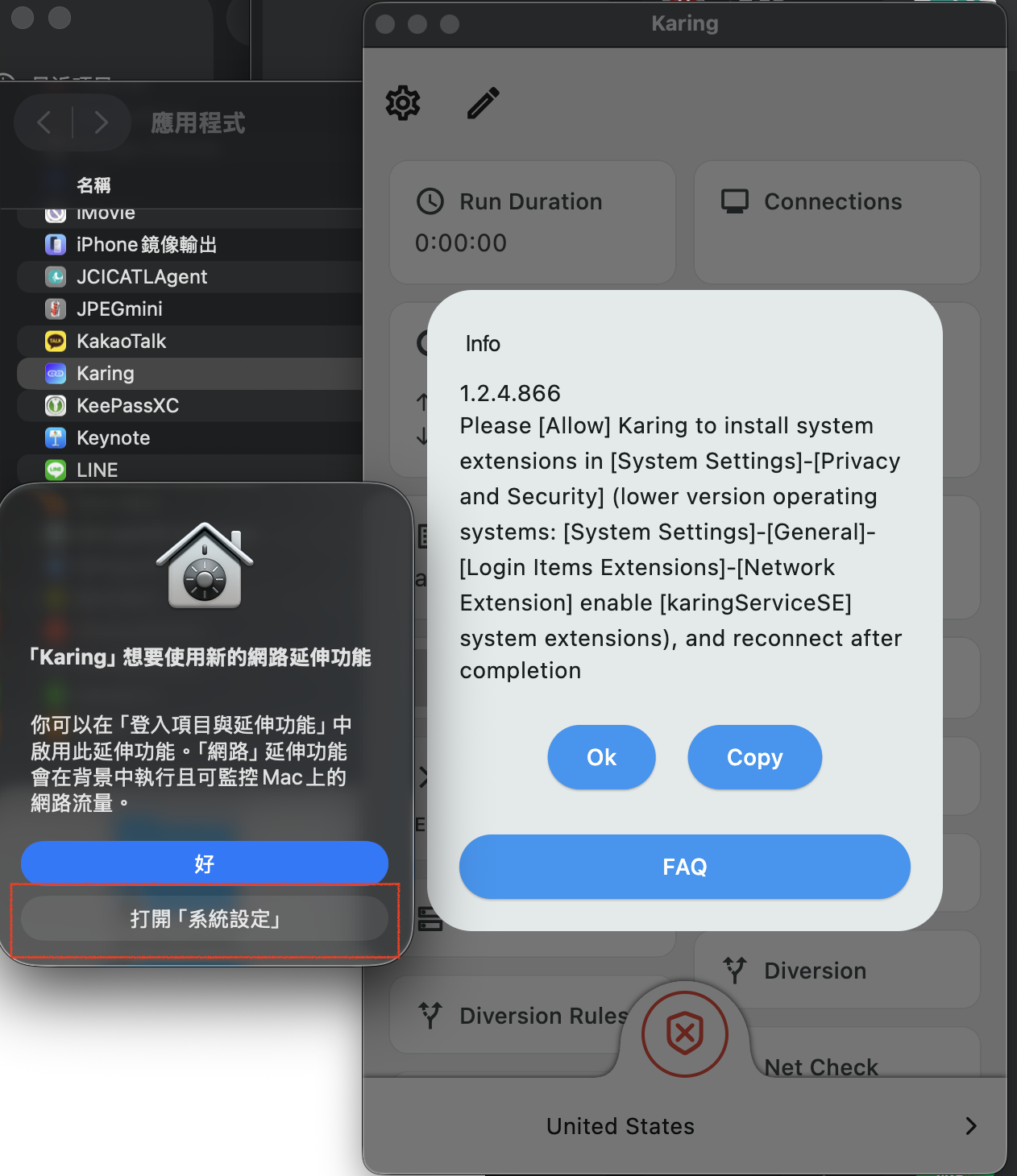
After opening the Karing App, two notification windows will appear simultaneously:
Left: macOS system pop-up
Right side: Karing's tooltip
Please note:
Do not click "OK"
Please select "Open System Settings"
¶ 2. Enable Karing extension features
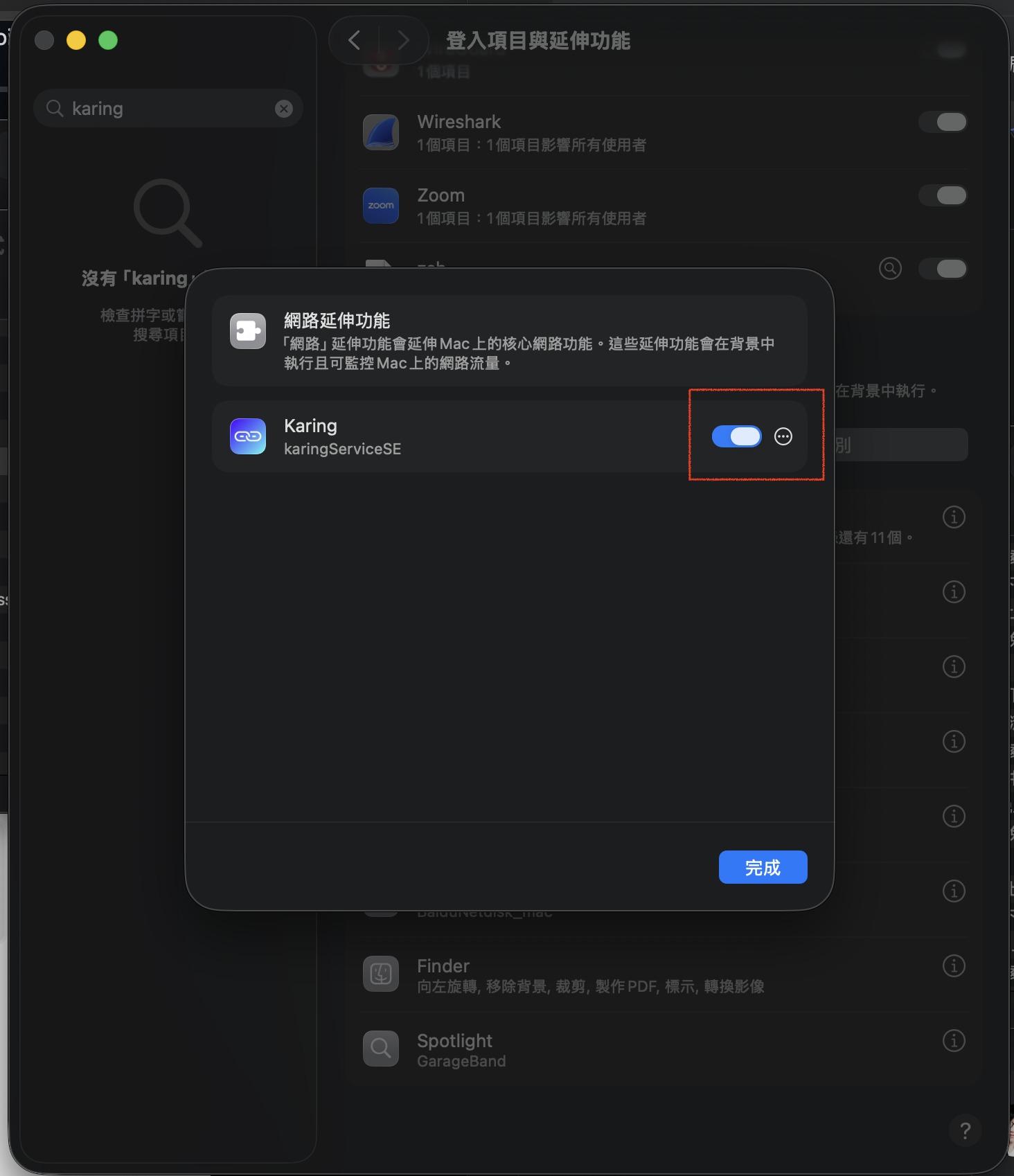
After clicking "Open System Settings," the system will automatically take you to System Settings.
On this page, find Karing's extended features and click "Enable."
Return to the Karing App to use it normally.
¶ 3. If you missed "Open System Settings"
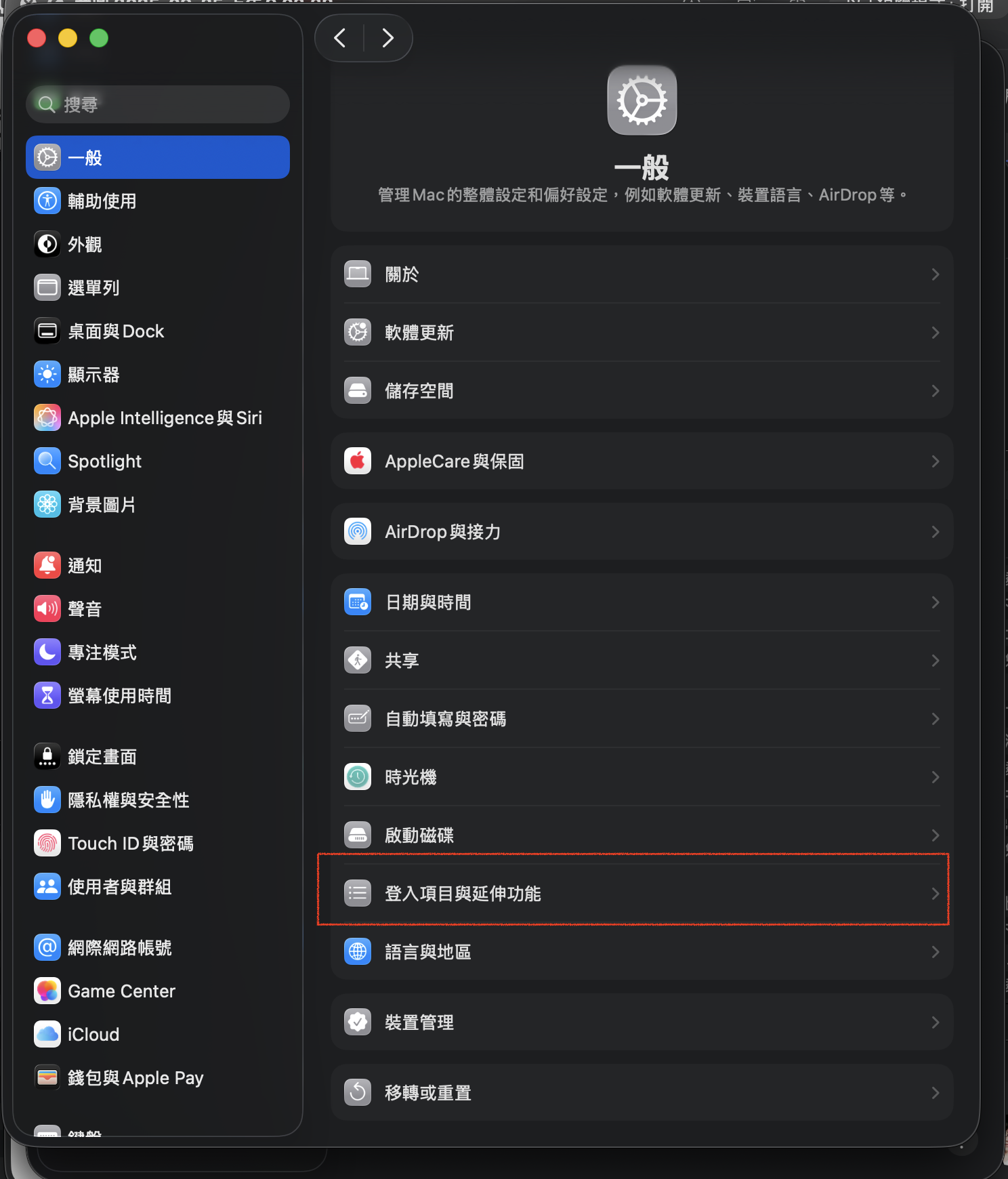
If you closed the prompt, please manually enable the extended features by following these steps:
Open System Settings
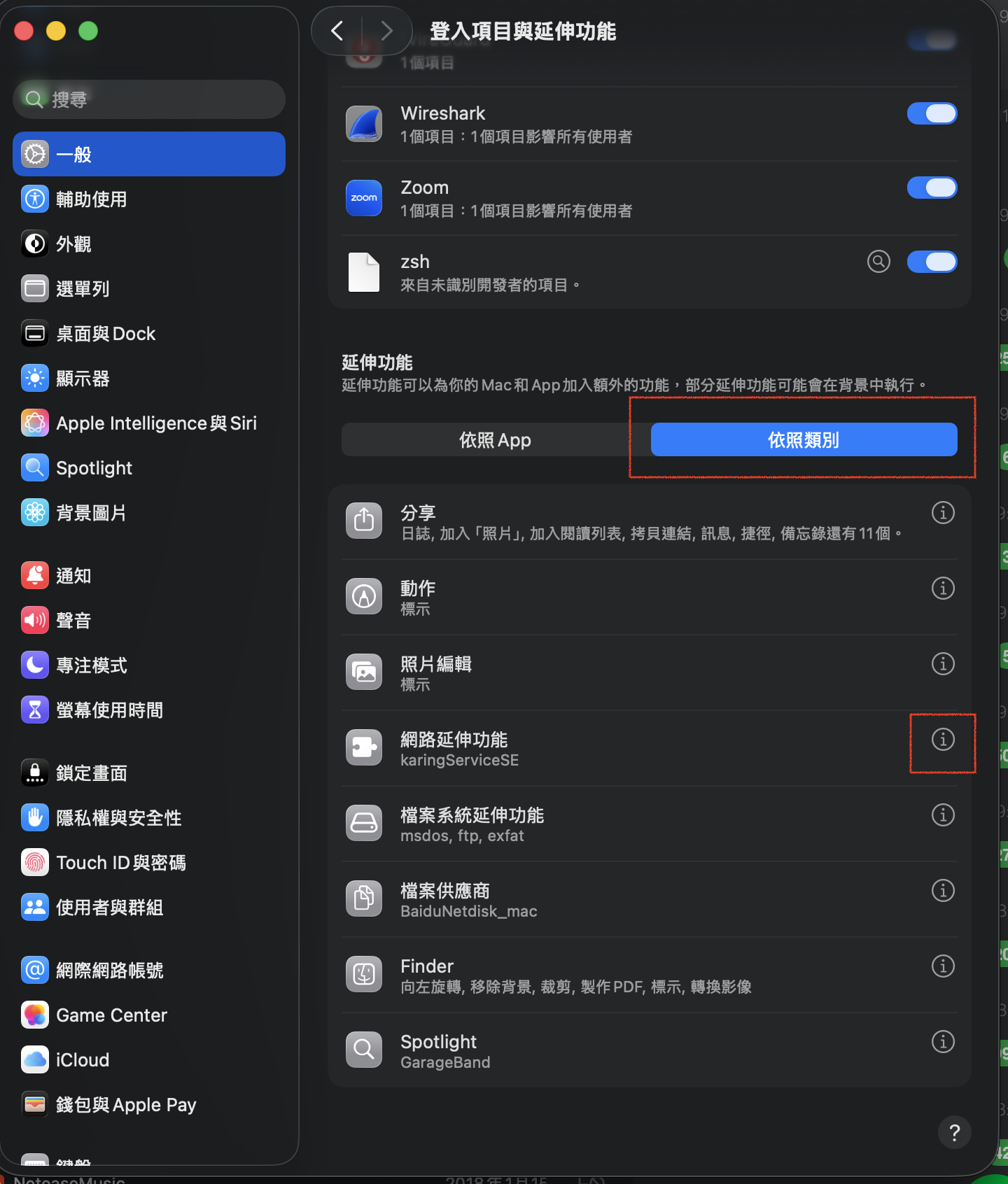
Click in sequence: [General] → [Login Items & Extensions] → [Extensions] → [By Category] → [Network Extensions]
Find Karing in the list and enable it.
 |
 |
¶ 4. Complete settings
After completing the above steps, Karing should run normally on macOS 26.
App Store Installation: No action is required; the system will automatically enable it.
DMG Installation: If a prompt appears, please follow the instructions.